Dropbox Embed is a Joomla! plugin that allows you to embed Dropbox files and folders into your Joomla! website using a simple shortcode.
Have you ever felt yourself wanting to share lots of files on your Joomla! website—massive PDFs, folders full of high-resolution images, executable files—and you need them to be up-to-date instantly?
Sure, you can use the Joomla! media manager, but let’s face it—it’s the old way of doing things. It’s a one-way street, so forget it. Once you’ve updated the file on your computer, you have to re-upload it to your site manually. It’s tedious, time-consuming, treacherous for low-bandwidth sites and archaic.
Enter the holy grail: Dropbox syncing. Want to drop a file into a folder on your desktop and have it magically appear on the website seconds later? Dropbox, baby. But how can we get this easily working on a Joomla! site?
Current Dropbox Embed Methods for Joomla! sites
Firstly, let’s take a look at the menu of available extensions to integrate Dropbox into a Joomla! website. A quick search reveals there is one big player that keeps popping up—a massive Dropbox integration component by Artur Neumann. It’s a beast of a tool—available for a small fee or donation. It handles everything—uploads, downloads, user permissions, and even gallery views.
Wow! Nice. But what if you just want to display a simple folder? It would seem for that type of project, a component is overkill—it would be like buying a semi-truck just to carry a couple bags of groceries (you don’t need a truck—a bike trailer will do just fine for a grocery haul). I didn’t need to manage a full cloud file system from my Joomla! backend—I just needed a simple window into my world. You see, I just wanted to display the files that were already there.
Using Iframes To Display Dropbox Files
So, I looked at the alternative: the dreaded iframe. Embedding a Dropbox folder directly into a Joomla! article usually forces you down one of two painful paths.
The first path is creating a Menu Item of the type “Wrapper.” This creates a standalone page that is nothing but the Dropbox folder inside a frame. It works, but it rips the user away from the context of the article. They aren’t reading your story anymore; they are staring at a single file. And I couldn’t get this method to work with directories, anyway.
The second path is creating a Module that loads an iframe. You then have to assign that module to a specific position on the template, or use a loadposition code to inject it into the article. Once again, it’s a clunky solution. On mobile devices, scrolling through an iframe inside a page is a nightmare—your thumb gets stuck in the frame while the rest of the page refuses to move. It looks like a relic from 1999 horror movie, when Y2K was fresh on everyone’s mind, and people were talking about how it was going to shut down everything from the banking sector to pet food manufacturers.
Using The Dropbox Embedder
I decided to get my hands dirty and poke around the documentation. The Dropbox Embedder looked promising—Dropbox offers hey had a clean, modern way to embed files using an anchor tag and a bit of JavaScript. It was sleek. It was the “Grid Layout” I had been dreaming of.
Problems With The Embedder
But there was a catch. A big one.
To make the embedder work on my Joomla! website, I had to load an external JavaScript file from Dropbox. In the world of Joomla!, you can’t just throw a <script> tag into an article and hope for the best. The editors—TinyMCE or JCE—are paranoid. They strip out script tags for security reasons the moment you hit save.
Of course, you can always use an extension like Sourcerer—this will allow you to bypass the stripping action and put code snugly inside your article. But, managing that script on every single page was messy—it required putting the JavaScript in an external file, which meant installing yet another extension just to manage headers, or hacking the core template files.
With this approach, I felt like I was building a house of cards. One wrong move, and the whole thing would collapse. I wanted something elegant. I wanted something simple. I wanted to just type a code and walk away.
Building The Dropbox Embedder Joomla Content Plugin
I realized I had to build my own plugin. I didn’t want to mess with anchor tags and class attributes every time I wrote an article. I wanted a shortcode. I wanted to be able to command the plugin to do the heavy lifting for me.
I set out to vibe-code a solution that would take a simple shortcode with a link to a file or folder stored on Dropbox and turn it into that beautiful Dropbox embed, right inside my article. I needed flexibility, though. Sometimes I needed a full-width folder view. Sometimes I needed a small box for a single PDF.
The result—I created the Dropbox Embed Joomla! Content Plugin
Here is the magic syntax I came up with, to embed a Dropbox folder or file directly in your Joomla! article.
{dropbox}DROPBOX\_LINK|HEIGHT|WIDTH{/dropbox}
Now, instead of wrestling with HTML and script tags, I could simply type this to show a folder:
{dropbox}https://www.dropbox.com/scl/fo/5pu6lcznlqushows1gluk/AOuhBExMHsO0lGM5AqU5d2Y?rlkey=d113ffnzhu8vseecxxe61ddk3{/dropbox}
And if I needed to fit a huge PDF into a specific spot on my layout? I just added the pipes and the pixels:
{dropbox}https://www.dropbox.com/scl/fo/5pu6lcznlqushows1gluk/AOuhBExMHsO0lGM5AqU5d2Y?rlkey=d113ffnzhu8vseecxxe61ddk3|500|800{/dropbox}
The plugin does the rest. It takes that simple text, injects the API key (which I made a plugin parameter, so no more hard-coding!), adds the necessary Dropbox script to the page header automatically, and renders the container.
Only downside is that you’ll need to create an app, however, and copy the App Key (not to be confused with API key) into the configuration.
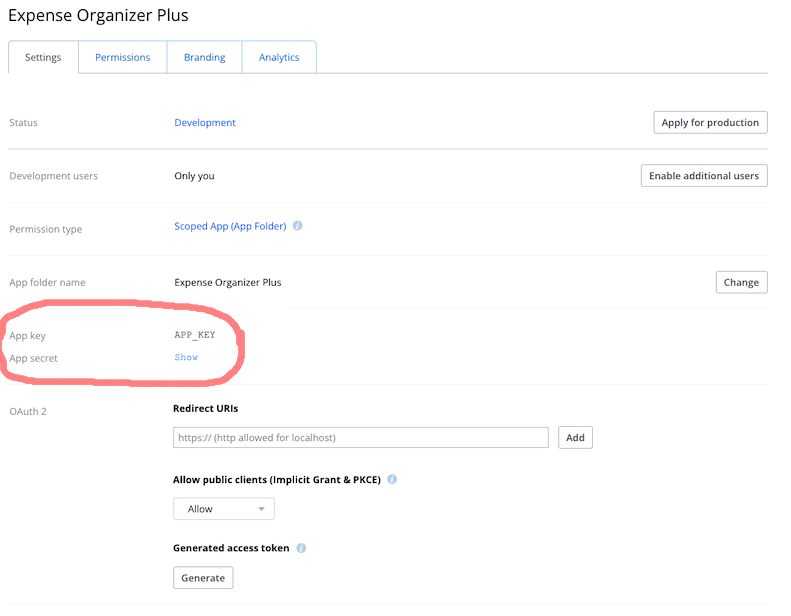
Then you make sure that you’ve added your website’s URLs to the allowed site on your App, otherwise it won’t load.
So, what are you waiting for? Grab the plugin right now. You can use this URL: https://github.com/brettvac/dropboxembed/releases/latest/download/dropboxembed.zip
The Price of The Embedder
It was a Pyhhric victory. I could display massive executive files and huge PDF documents without using a dreaded Download Manager.” The files lived on Dropbox, keeping my server light and my content fresh. But… there is a ghost in the machine.
I have to be honest with you. While this solution is elegant for the user, it comes with a price.
The external script from Dropbox? It’s heavy. It takes time to call home to the Dropbox servers and render that fancy grid.
So, if you are an SEO who is obsessed with Google PageSpeed scores, this might hurt. It affects the LCP (Largest Contentful Paint) time. The user sees the page, and then a split second later, the Dropbox folder pops in. It’s also not the best for SEO, because the content is technically living inside a JavaScript container, not in the HTML of your page.
It’s a double-edged sword—it solves the workflow problem perfectly, but it trades speed for convenience. But you want to see the files in a backend portal? It’s the perfect weapon for the job.